


When an account asks for more than a password, the difficult part is rarely understanding what two-factor authentication is. The real challenge is choosing a second step that you can use consistently, move between devices safely, and recover from when your phone changes. That is the situation where Authenticator 2FA OTP Backup makes sense. I approached it as a practical security tool rather than a flashy utility: a place for one-time codes, TOTP protection, and private two-factor login support.
My overall impression is that it is aimed at people who want a dedicated authenticator instead of relying on text messages or searching through several unrelated security apps. It belongs in the House & Home category, although its everyday role is really digital housekeeping. The app is free to start, carries an Everyone age rating, and comes from Duong Van Luong. Its store summary focuses on securing accounts with OTP codes, TOTP, and private 2FA login, which is a useful description of its purpose without pretending that account security becomes effortless.
The app has built a sizeable audience, with an average rating of 4.2 from around 58K ratings and more than a million installs. Those figures suggest that it has become a familiar option for people who need authenticator codes, but they do not remove the need to set it up carefully. An authenticator is only as useful as the recovery plan around it. My strongest advice is to treat the first setup as a small security project, not as a quick tap-through.
From an account password to a usable second step
I would begin with one account at a time. The starting condition is usually familiar: a service has asked me to enable two-factor authentication, shown a QR code or setup key, and warned that future logins will require a changing code. This is the moment to open the app and prepare the account entry, but I would not rush to close the service’s setup screen. The setup key is important because it may be the bridge back to the account if the phone is lost or replaced.
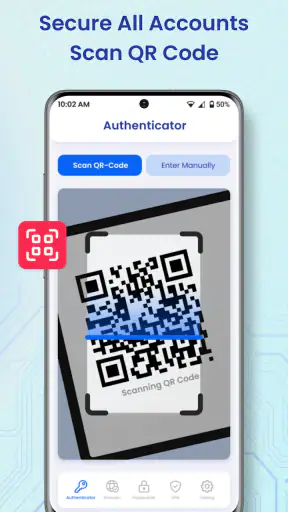
The normal workflow is straightforward. I add the account inside the authenticator, scan the displayed QR code when that option is available, or enter the setup information manually if scanning is inconvenient. The app then produces a current one-time password that I enter back into the service. The service checks that code, and the account’s second factor becomes active. The handoff between the website and the app is the part that deserves attention: switching screens too quickly, scanning the wrong code, or saving the wrong account label can make a simple job feel confusing.
I find account naming more important than it first appears. If I protect several services from the same company, vague labels can leave me guessing later. A clear label that includes the service and, where useful, the account purpose makes the login process faster. I would also check the code carefully before submitting it, because a time-based code can expire while I am moving between screens. That is not a flaw unique to this app; it is a basic characteristic of TOTP authentication, but a dedicated authenticator makes the timing visible and easy to repeat.
The best habit is to plan recovery before the first successful login. I would keep the service’s recovery codes in a separate secure place and retain the original setup information according to the service’s instructions. The authenticator can generate the code needed today, but it should not be the only thing standing between me and an account tomorrow. This distinction is especially important for banking, work, identity, and email accounts, where losing access can create a much larger problem than having to reset a social account.
What the code workflow feels like in daily use
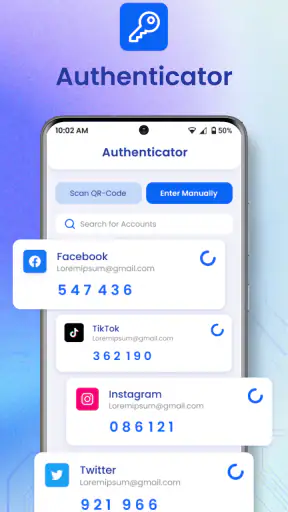
Once an account is configured, the everyday sequence is short: open the service, enter the password, switch to Authenticator 2FA OTP Backup, read the current code, return to the service, and submit it. I like this model because it avoids waiting for a text message and does not depend on a mobile carrier delivering anything at the exact moment I need to sign in. It also keeps the second factor separate from the password, which is the point of using it.
A realistic example is signing into an email account on a new laptop while travelling. I enter the password, the service requests a verification code, and I open the authenticator on my phone. The code is available without waiting for a message, so the handoff is quick. The friction appears if the laptop is showing a QR code and the phone is already being used for the authenticator, or if the service’s login page times out while I change apps. In that situation, I would use manual entry or start the login again rather than repeatedly submitting an expired code.
Another useful workflow is separating setup from routine access. I would configure several accounts during a calm session, verify each one immediately, and only then move on. Testing an entry while the service is still offering its recovery information gives me a chance to correct a mistake before I am locked out. This is a more valuable use of the app than simply installing it and assuming that every future login will be covered.
The app’s focus on OTP and TOTP makes it a good fit for services that support standard authenticator codes. It is not a universal replacement for every sign-in method. Some services prefer passkeys, hardware security keys, approval prompts, or text messages. If a service does not offer a compatible authenticator setup, this app cannot change that. I would choose the method the service supports best, especially for high-value accounts where a passkey or hardware key may provide a stronger and more convenient long-term arrangement.
Moving between people, devices, and responsibilities
The most overlooked part of two-factor authentication is the handoff. A person may set up an account on a personal phone, later receive a work phone, or need to help a family member sign in. The question is not only whether the code appears now; it is whether the right person can still reach the account after the original setup changes.
For a personal device change, I would first confirm the service’s recovery route, then transfer or recreate the authenticator entry using the service’s approved method. I would not wipe the old phone until the new arrangement has been tested. The app’s backup-oriented identity makes this concern central, but a backup label should never encourage careless storage of secret keys. A backup that is easy for anyone nearby to read is not a secure backup.
For a shared household account, I would think carefully before placing the authenticator on a phone that several people use. A code generator is effectively part of the account’s security boundary. The better arrangement may be a designated account owner, a documented recovery process, and a separate secure record of recovery details. This is one of the cases where the app can help with code generation but cannot solve the underlying question of ownership and responsibility.
For work accounts, I would follow the organization’s rules before using a personal authenticator. Some workplaces require managed security tools or administrator-controlled recovery. Even when a standard TOTP app works technically, it may not be the approved choice. The app is most comfortable for personal accounts and small, clearly controlled setups where I understand who owns the account and who can recover it.
The developer is Duong Van Luong, and the current release is version 2.5.22. I would still treat version updates as part of the handoff process: after updating, open the app and confirm that the entries needed for the next login are present. That simple check is worthwhile for any authenticator because the cost of discovering a problem during an urgent sign-in is much higher.
Where backup helps and where it needs caution
The word “backup” is reassuring, but it needs a precise interpretation from the user’s point of view. A backup is useful when it lets me restore access after a phone replacement or protects me from losing an entry. It becomes risky if it creates an unprotected copy of the secrets that generate my codes. I would therefore keep any backup information private, avoid sending it through casual chat, and never treat a screenshot of a setup QR code as harmless.
This is also where I would compare the app with the usual alternatives. Text-message verification is easier for some beginners because the code arrives automatically, but it depends on phone service and can be less attractive for security-conscious users. A built-in password manager may be more convenient if I already keep passwords and one-time codes together, especially when it can fill both parts of a login. On the other hand, a separate authenticator creates a clear boundary between the password store and the second-factor generator.
Passkeys and hardware security keys can offer a smoother experience on services that support them, particularly for people who dislike copying a changing code. They may also fit better into a broader security plan. Authenticator 2FA OTP Backup remains useful when a service specifically provides a TOTP setup or when I want a dedicated application for those codes. I would not choose it simply because every account needs the same method; the strongest practical setup is often a mixture of methods selected account by account.
There is also a cost consideration. The app is free, but in-app purchases range from $5.99 to $29.99 per item. That does not automatically make it poor value, yet I would inspect what I actually need before paying. If I only protect a small number of accounts and the free experience covers my workflow, an upgrade may not be necessary. If a paid option is important to my backup or convenience needs, I would make that decision only after testing the basic setup and understanding which part of my routine it improves.
Small frictions that can decide whether it works for you
The biggest friction is not code generation; it is context switching. I have to move between the account’s login screen and the authenticator, and that can be awkward on a small phone. A split-screen arrangement, a second device for the setup QR code, or manual entry can make the process easier, but these are workflow adjustments rather than magic features. I would also avoid starting a sensitive account setup while distracted or in a place where someone could see the QR code.
Another limitation is dependence on the phone’s availability. A code-based authenticator is convenient when the phone is charged and in reach, but it is not a complete disaster-recovery plan by itself. Travellers, people who frequently change devices, and anyone who has experienced a lost phone should prepare recovery details before they need them. If I regularly sign in from several devices and want automatic synchronization with minimal thought, a well-integrated password manager or another service designed around that workflow may be a better fit.
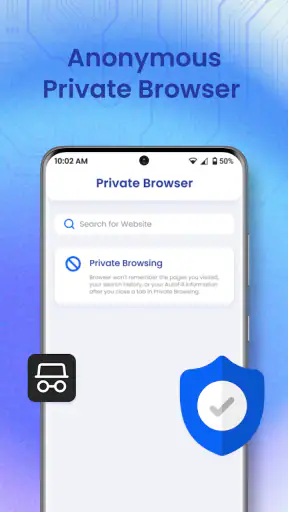
Privacy is another reason to slow down. The app’s promise of private 2FA login is appealing, but I would still apply normal security discipline: use a device lock, keep the operating system current, and avoid exposing authenticator screens in public. The app can protect the code-generation step, but it cannot prevent someone who has full access to an unlocked phone from viewing what is on it.
I would also skip this app if I am looking for a password manager, a complete identity-security suite, or a tool that automatically repairs every account after a device loss. Its purpose is narrower. That narrowness is a strength when I want a dedicated OTP tool, but it becomes a mismatch when I expect one application to manage passwords, passkeys, recovery contacts, device approvals, and account audits all at once.
Who gets the most value from it
I think the app is best for someone who is moving away from SMS codes, has several services that support TOTP, and wants a separate place for authenticator entries. It is also suitable for a careful beginner who is willing to learn the setup-and-recovery routine once. The Everyone rating and free entry point make it approachable, while the large install base suggests that it is not an obscure experiment.
It is less suitable for a person who wants zero manual interaction. Every authenticator introduces at least one extra step, and this one does not remove the need to read and enter a changing code. It is also not ideal for a family that has never agreed on who controls shared accounts, or for a workplace that mandates a different security system. In those situations, the organizational decision should come before the app choice.
My practical recommendation is to begin with a low-risk account that supports TOTP, complete the full setup, sign out, and test the login again. Then confirm that the entry is clearly labelled and that recovery information is stored separately. Once that workflow feels comfortable, add more important accounts one by one. This approach exposes setup problems early and prevents a rushed migration of every account at once.
Final assessment after following the complete workflow
Authenticator 2FA OTP Backup succeeds when I judge it by the job it is meant to do: provide a dedicated route to OTP and TOTP codes during account sign-in. The useful outcome is not merely seeing a number on the screen. It is reaching an account without relying on an SMS message, while keeping a sensible plan for device changes and recovery.
I appreciate the clear separation from ordinary login credentials, and I can see why the app appeals to people who want a focused authenticator rather than a larger security platform. The trade-off is that the user must take responsibility for the handoffs: QR codes, setup keys, recovery codes, new phones, shared accounts, and the short window before a code expires. Those details are manageable, but ignoring them can turn a convenient security layer into a lockout risk.
With an average rating of 4.2 and over a million installs, it has earned enough attention to be a credible option in its category. I would recommend it to a friend who needs standard authenticator codes and is comfortable maintaining a private recovery plan. I would point that friend toward passkeys, a hardware key, or a password manager instead when those options better match the services and devices involved.
In short, this is a practical free starting point for dedicated two-factor authentication, with optional in-app purchases for users who need more from the experience. Use it deliberately, test each account after setup, and protect the recovery information as carefully as the codes themselves. If you follow that workflow, the app can turn an inconvenient login requirement into a repeatable, fairly painless part of everyday account security.


